
Last Updated On : 12-Oct-2026
An administrator wants to validate the BGP connection status between the Tier-0 Gateway
and the upstream physical router.
What sequence of commands could be used to check this status on NSX Edge node?
A. - enable < LR-D >
- get vrf < ID >
- show bgp neighbor
B. - get gateways
- vrf < number >
- get bgp neighbor
C. - set vrf < ID >
- show logical-routers
- show < LR-D > bgp
D. - show logical-routers
- get vrf
- show ip route bgp
Explanation:
The correct command sequence to validate BGP connection status between a Tier-0 Gateway and an upstream physical router is get gateways, then vrf
Why this is the correct sequence:
get gateways – This command lists all available gateways (both Tier-0 and Tier-1) on the NSX Edge node, providing an overview and displaying their VRF IDs . This is the logical starting point to identify which gateway you need to examine.
vrf
get bgp neighbor – Once inside the correct VRF context, this command displays detailed BGP neighbor information, including the critical BGP state which should read Established, up to confirm a successful BGP peering session .
Why other options are incorrect:
A. - enable
There is no enable command in the NSX Edge CLI shell . Additionally, the syntax show bgp neighbor is not used; the correct NSX CLI command is get bgp neighbor . The NSX CLI uses get as a primary verb for retrieving information, not show.
C. - set vrf
The set verb in NSX CLI is used for modifying configurations (e.g., set ntp-server), not for entering VRF contexts. The correct command to enter a VRF is vrf
D. - show logical-routers - get vrf - show ip route bgp – Incorrect.
While get logical-routers is a valid command, the sequence then uses get vrf without a number, which is syntactically incomplete. Moreover, show ip route bgp is not a valid NSX Edge CLI command; the correct command to view BGP routes is get bgp or get route within the VRF context .
Reference
Broadcom TechDocs – "Verify BGP Connections from a Tier-0 Service Router": Documents the sequence: get logical-routers → vrf
VMware Documentation – "Verify North-Bound ECMP Routing Connectivity": Confirms the same workflow for BGP validation
Which troubleshooting step will resolve an error with code 1001 during the configuration of a time-based firewall rule?
A. Restarting the NTPservice on the ESXi host.
B. Reconfiguring the ESXi host with a local NTP server.
C. Re-installing the NSX VIBs on the ESXi host.
D. Changing the time zone on the ESXi host.
Explanation:
Error code 1001 with the message "NTP Service is not up" occurs when the Distributed Firewall (DFW) attempts to enforce a time-based rule but cannot verify the ESXi host's time synchronization . The root cause is that the DFW's NTP status check (ntpq -p command) times out after 30 seconds, preventing the host from confirming it has a synchronized clock .
Why other options are incorrect:
A. Re-installing the NSX VIBs on the ESXi host. – Incorrect. Reinstalling NSX VIBs (vSphere Installation Bundles) is an extreme measure that re-deploys the NSX software components on the host. This does not address the NTP service issue. The error code explicitly indicates an NTP problem, not a corrupted or missing VIB installation .
C. Changing the time zone on the ESXi host. – Incorrect.
A mismatched time zone can cause time-based rules to apply at incorrect times, but it does not generate error code 1001. The error is specifically related to the NTP service being "not up" or unresponsive, not a time zone configuration issue . The official VMware documentation notes that if the time zone is changed on an Edge node after deployment, the node must be reloaded, but this is a different scenario and not associated with error 1001 .
D. Reconfiguring the ESXi host with a local NTP server. – Incorrect.
While the ESXi host must have a valid NTP server configured, reconfiguring it with a local NTP server is not the primary solution. The error is caused by the NTP service being unresponsive (timing out), not by an incorrect NTP server address. If the existing NTP server is unreachable, reconfiguring to a working server may help, but the question asks for the step that resolves the error—restarting the service is the immediate troubleshooting step . The official Broadcom knowledge article provides a workaround involving editing the nsx-cfgagent.xml file, not switching to a local NTP server .
Reference
Broadcom Knowledge Base Article 345422 – "NSX Time-Based Policy status unknown - Error Code = '1001'": Documents the error, its cause (NTP command timeout > 30 seconds), and workaround .
Sort the rule processing steps of the Distributed Firewall. Order responses from left to right.
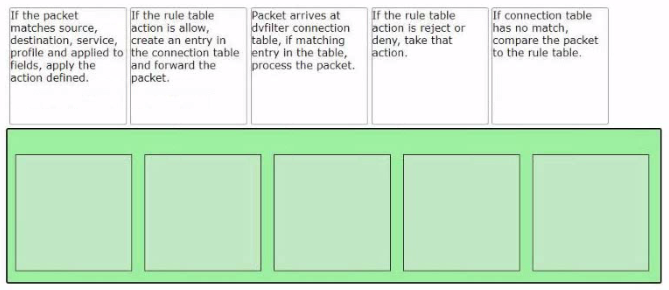
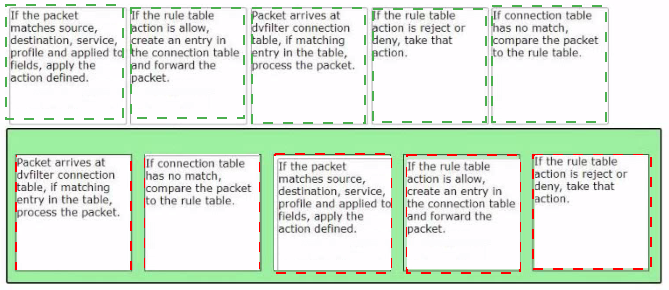
Explanation:
The Distributed Firewall (DFW) in NSX uses a two-stage lookup process: a fast-path connection table lookup followed by a slow-path rule table evaluation. The correct ordering is as follows:
Connection table lookup – When a packet arrives, the dvfilter (the NSX firewall filter module) first checks the connection table for an existing entry. If a matching entry is found, the packet is processed according to the cached action (allow or deny) without re-evaluating the full rule table. This fast-path processing provides high throughput for established connections.
Rule table evaluation – If no matching connection entry exists, the packet must be compared against the rule table (the slow path). This involves matching the packet against all configured firewall rules in priority order (from top to bottom).
Rule match – The packet is compared against the rule's source, destination, service, context profile, and "applied to" fields. When a match is found, the rule's defined action is applied.
Allow action – If the matching rule action is Allow, the system creates a new entry in the connection table (to accelerate subsequent packets in the same flow) and then forwards the packet to its destination.
Reject/Deny action – If the matching rule action is Reject or Deny, the system takes that blocking action immediately. No connection table entry is created for blocked flows (or a negative entry may be cached temporarily depending on configuration).
Reference
VMware NSX 4.x Administration Guide – "Distributed Firewall Packet Processing": Documents the connection table fast path and rule table slow path behavior.
VMware NSX-T Data Center Documentation – The dvfilter module checks the connection table first; if no entry exists, the packet is sent to the slow path for rule evaluation.
Match the NSX Intelligence recommendations with their correct purpose.
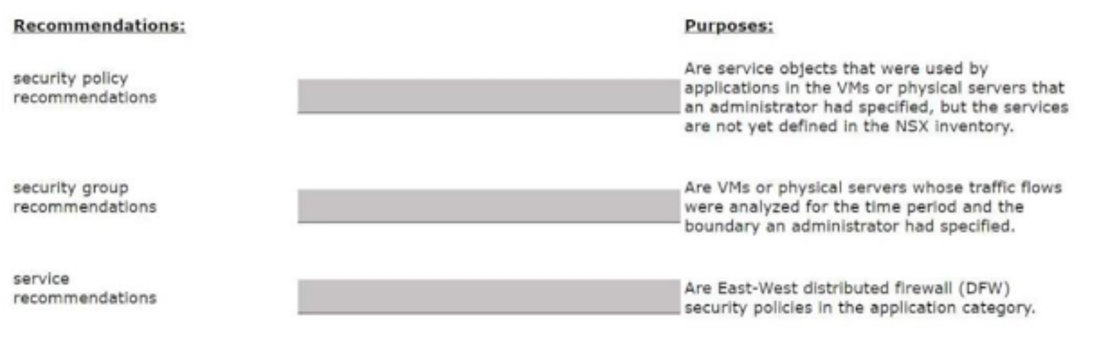
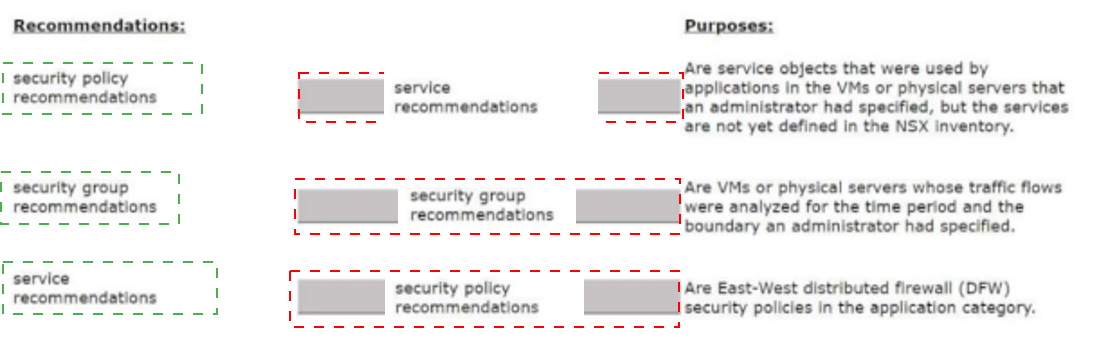
Explanation:
NSX Intelligence analyzes network traffic flows and generates three types of recommendations to help administrators create micro-segmentation policies.
Security Group Recommendations – These identify groupings of VMs or physical servers based on observed traffic patterns. NSX Intelligence analyzes traffic flows over a specified time period and boundary, then recommends security groups (formerly called "groups") that represent sets of workloads which frequently communicate with each other . Administrators can create these recommended groups, which will dynamically update membership based on the defined criteria .
Service Recommendations – These identify service objects (protocols and ports) that NSX Intelligence observed being used by applications, but which are not yet defined in the NSX inventory . For example, if NSX Intelligence detects traffic on TCP port 8080 but there is no "HTTP-ALT" service object defined, it will recommend creating that service object. This enables more precise firewall rules that specify exact services rather than using wildcards .
Security Policy Recommendations – These are complete DFW security policies in the application category . NSX Intelligence generates security policy recommendations based on observed application traffic flows . These policies are initially set to "Monitor" mode, allowing administrators to review the recommended allow rules and observe their impact before enforcing them in production .
Incorrect Mappings (from the exhibit)
The exhibit incorrectly swapped the purposes:
"Service recommendations" was incorrectly matched with "service objects… not yet defined" — This is actually correct.
"Security policy recommendations" was incorrectly matched with "service objects" — Incorrect.
"Security group recommendations" was incorrectly matched with "security policies" — Incorrect.
Reference
Broadcom TechDocs– NSX Intelligence Workflows: Documented process for generating and managing security group, service, and security policy recommendations .
VMware NSX 4.x Administration Guide – "Analyze Traffic with NSX Intelligence": Explains that service recommendations identify ports and protocols that need service definitions, and security group recommendations identify VM groupings based on traffic patterns .
An NSX administrator is creating a NAT rule on a Tier-0 Gateway configured in activestandby
high availability mode.
Which two NAT rule types are supported for this configuration? (Choose two.)
A. Port NAT
B. 1:1 NAT
C. Destination NAT
D. Reflexive NAT
E. Source NAT
Explanation:
The NSX administrator is creating a NAT rule on a Tier-0 Gateway configured in active-standby HA mode. Based on the official VMware/Broadcom NAT support matrices, both Source NAT (SNAT) and Destination NAT (DNAT) are fully supported in this deployment scenario .
C. Destination NAT – Correct.
DNAT translates the destination IP address of inbound packets, allowing traffic from external networks to reach internal resources. This is fully supported on Tier-0 gateways in active-standby HA mode .
E. Source NAT – Correct.
SNAT translates the source IP address of outbound packets, enabling internal workloads to access external networks. This is fully supported on Tier-0 gateways in active-standby HA mode .
Why other options are incorrect:
A. Port NAT – Incorrect.
"Port NAT" is not a standard NAT type within the NSX NAT framework. While DNAT can include port translation (the translated-port field is optional in DNAT configuration), "Port NAT" is not recognized as a distinct NAT type in official NSX documentation. The three documented types are SNAT, DNAT, and Reflexive NAT .
B. 1:1 NAT – Incorrect. 1:
1 NAT is a configuration use case or mapping type, not a distinct NAT type. Both SNAT and DNAT can be configured in a 1:1 mapping pattern. The NAT support matrices show that 1:1 is a supported configuration use case for SNAT, DNAT, and Reflexive NAT, but it is not itself a NAT rule type . The question asks for "NAT rule types," not configuration patterns.
D. Reflexive NAT – Incorrect.
While Reflexive NAT (stateless NAT) is a supported NAT type in NSX, it behaves differently from stateful SNAT/DNAT. More importantly, in active-standby mode, while Reflexive NAT is technically supported, the primary recommendation for active-standby deployments is to use stateful SNAT and DNAT. Reflexive NAT is typically associated with active-active HA mode configurations where stateful NAT is not supported . Federation documentation confirms that in active-active mode, only stateless NAT (Reflexive) can be configured, whereas active-standby supports stateful SNAT/DNAT . Since the question specifies an active-standby configuration, SNAT and DNAT are the standard choices.
Reference
Broadcom TechDocs – NAT Overview : SNAT and DNAT are supported on Tier-0 gateways running in active-standby mode.
Broadcom TechDocs – Add a Tier-0 Gateway : NAT services are only supported in active-standby mode.
What should an NSX administrator check to verify that VMware Identity Manager integration is successful?
A. From the NSX Ul the status of the VMv/are Identity Manager Integration must be Enabled'
B. From the NSX CLI the status of the VMware Identity Manager Integration must be Configured'
C. From VMware Identity Manager the status of the remote access application must be green
D. From the NSX Ul the URI in the address bar must have locaMalstf part of it.
Explanation:
After configuring VMware Identity Manager (vIDM) integration with NSX, the administrator must verify that the integration is active and functioning. The primary verification method is checking the integration status directly in the NSX user interface (UI). According to VMware's official documentation and exam study resources, when the integration is configured correctly and communication between NSX Manager and vIDM is successful, the status in the NSX UI will appear as "Enabled" with a green connection indicator .
This status confirms that NSX Manager has successfully registered as an OAuth 2.0 client with vIDM, that the OAuth client ID and secret are valid, and that the SSL thumbprint matches the vIDM host's certificate .
Why other options are incorrect:
B. From the NSX CLI the status must be 'Configured' – Incorrect.
While PowerShell cmdlets like Request-NsxtVidmStatus can return integration status information , the standard verification method is checking the UI, not the CLI. Additionally, the expected status is "Enabled" not "Configured."
C. From VMware Identity Manager the status of the remote access application must be green – Incorrect.
The green status indicator in vIDM's System Diagnosis Dashboard monitors the health of vIDM's own components and services (database, connectors, certificates) . This does not reflect the integration status between NSX and vIDM. The remote access application concept is relevant to Horizon/Citrix integration, not NSX .
D. From the NSX UI the URI in the address bar must have 'local=false' – Incorrect.
The ?local=true parameter is used to force local authentication bypassing vIDM when issues occur . "local=false" is not a standard verification indicator for successful vIDM integration.
Reference
Exam 2V0-41.23 Discussion – "VMware Identity Manager Connection status is Up and VMware Identity Manager Integration is Enabled with green color"
Exam 2V0-41.24-JPN Study Materials– "From the NSX UI the status of the VMware Identity Manager Integration must be 'Enabled'"
Which steps are required to activate Malware Prevention on the NSX Application Platform?
A. Select Cloud Region and Deploy Network Detection and Response.
B. Activate NSX Network Detection and Response and run Pre-checks.
C. Activate NSX Network Detection and Response and Deploy Malware Prevention.
D. Select Cloud Region and run Pre-checks.
Explanation:
To activate Malware Prevention on the NSX Application Platform, the mandatory steps are selecting a Cloud Region and running Pre-checks. According to the official VMware/Broadcom documentation, after navigating to the NSX Application Platform features section and clicking Activate on the Malware Prevention feature card, the activation window prompts the administrator to select one of the available cloud regions from which to access the NSX Advanced Threat Prevention cloud service.
After selecting the cloud region, the next required step is to click Run Prechecks. The precheck process validates several critical requirements before activation can proceed:
The minimum license requirement is met
The NSX environment is eligible for use with the NSX Advanced Threat Prevention cloud service
The selected cloud region is reachable
Only after successfully completing these two steps can the administrator click Activate to finalize the activation process.
Why other options are incorrect:
A. Select Cloud Region and Deploy Network Detection and Response. – Incorrect.
Network Detection and Response (NDR) is a separate feature that can be activated independently of Malware Prevention. The activation workflow for Malware Prevention does not require deploying NDR. Additionally, the NSX Application Platform must already be deployed before activating Malware Prevention, not NDR.
B. Activate NSX Network Detection and Response and run Pre-checks. – Incorrect.
While NDR activation does involve running prechecks, the question specifically asks about activating Malware Prevention, not NDR. These are distinct features with separate activation workflows, although they share the same cloud region selection.
C. Activate NSX Network Detection and Response and Deploy Malware Prevention. – Incorrect.
This option incorrectly combines two separate features. Malware Prevention does not require NDR to be activated first. According to the official documentation, both features can be activated independently as long as the NSX Application Platform is deployed. Furthermore, Malware Prevention is activated, not "deployed" – the deployment refers to the NSX Application Platform itself, which must be in place beforehand.
Reference
Broadcom TechDocs – Activate NSX Malware Prevention: "In the NSX Malware Prevention activation window, select one of the available cloud regions... Click Run Prechecks... Click Activate"
Broadcom TechDocs – Activate NSX Network Detection and Response: Documentation for the separate NDR activation workflow
An NSX administrator is creating a Tier-1 Gateway configured in Active-Standby High
Availability Mode. In the event of node failure, the failover policy should not allow the
original failed node to become the Active node upon recovery.
Which failover policy meets this requirement?
A. Enable Preemptive
B. Non-Preemptive
C. Preemptive
D. Disable Preemptive
Explanation
When a Tier-1 Gateway is configured in Active-Standby High Availability mode, the administrator must select a failover policy that determines whether the original active node preempts its peer upon recovery. The requirement states that the failover policy should not allow the original failed node to become the Active node upon recovery. This is precisely the behavior of the Non-Preemptive failover policy.
According to the official VMware/Broadcom documentation, when Non-Preemptive mode is selected, "If the preferred NSX Edge node fails and recovers, it will check if its peer is the active node. If so, the preferred node will not preempt its peer and will be the standby node". This behavior ensures that once a failover occurs, the new Active node remains active, and the recovered node does not trigger another failover, promoting network stability and avoiding unnecessary service interruptions.
This design approach is recommended in VMware Cloud Foundation architectures, which explicitly deploy Tier-1 gateways in non-preemptive failover mode to ensure that after a failed Edge transport node is back online, it does not take over gateway services, thus avoiding a short service outage.
Why other options are incorrect:
A. Enable Preemptive / C. Preemptive – Incorrect.
In Preemptive mode, if the preferred NSX Edge node fails and later recovers, "it will preempt its peer and become the active node". This directly contradicts the requirement to prevent the recovered node from becoming active. The drop-down menu for failover policy only has two valid choices: Preemptive and Non-Preemptive. "Enable Preemptive" is redundant phrasing as it refers to the same behavior as Preemptive.
D. Disable Preemptive – Incorrect.
While disabling preemptive behavior would technically achieve non-preemptive results, this is not a valid configuration option in the NSX UI. The failover policy drop-down menu only offers "Preemptive" and "Non-Preemptive". "Disable Preemptive" is not a standard selectable option.
Reference
Broadcom TechDocs – Add a Tier-1 Gateway: Defines Non-Preemptive policy as the default where the preferred node does not preempt its peer upon recovery
Microsoft Azure VMware Solution Documentation: Confirms Non-Preemptive behavior: "If the preferred NSX Edge node fails and recovers, it checks if its peer is the active node. If so, the preferred node doesn't preempt its peer and becomes the standby node"
| Page 6 out of 15 Pages |
| 45678 |
| 2V0-41.24 Practice Test Home |