
Last Updated On : 12-Oct-2026
On a VMware vCenter managed virtual machine, how does the VMware Horizon Agent know which Connection Server it should register with during the Instant Clone pool creation process?
A. Administrator provides this information in the "Add Pool" creation wizard.
B. Horizon Agent retrieves this information from an DNS SRV record.
C. Administrator provides this information in the Horizon Agent Installation Wizard on the master image.
D. Horizon Agent queries VMware Tools for a Guestlnfo Variable during the cloning process.
✅ Explanation:
During the instant clone pool creation process, the Horizon Agent on each cloned VM needs to know which Connection Server to register with. This information is not manually provided by the administrator during the master image preparation or pool creation. Instead, the process is fully automated as follows:
When the administrator creates the instant clone pool, the Connection Server embeds the necessary registration information (including its own FQDN) into a GuestInfo variable on the parent VM .
The instant clone technology (based on VMware vSphere's VM Forking) then creates clones from the parent VM snapshot.
When a clone boots up, the Horizon Agent on that clone queries VMware Tools to read the GuestInfo variable .
The Horizon Agent uses this information to register the cloned VM with the correct Connection Server automatically.
This automated discovery mechanism ensures a seamless, hands-off registration process without requiring manual intervention for each clone .
❌ Why Other Options Are Incorrect
A. Administrator provides this information in the "Add Pool" creation wizard.
The administrator selects the parent VM, snapshot, and vCenter settings in the wizard, but does not manually enter the Connection Server address. That address is already part of the Horizon infrastructure configuration .
C. Administrator provides this information in the Horizon Agent Installation Wizard on the master image.
During Horizon Agent installation on the master image, the administrator is not prompted for the Connection Server address for instant clones . This prompt typically appears only when installing the agent for manual pools (e.g., physical computers or non-vSphere VMs) .
D. Horizon Agent retrieves this information from a DNS SRV record.
DNS SRV records are used by Horizon Clients (end-user devices) to discover Connection Servers when connecting to the environment, not by the Horizon Agent during VM registration .
📖 References
Exam discussion (2V0-51.23, Question 20):Community-agreed correct answer is B
Exam4Training explanation: Details how GuestInfo Variable is used and why other options are incorrect
An administrator recently deployed a Horizon pod with external access using Unified Access Gateway (UAG). While trying to launch VDI from an External network, VDI launches with a black screen and then disconnects. The administrator has validated the port requirement and all other required ports are open. Users are able to connect internally using the connection server URL. While reviewing the UAG logs, the administrator found that the Blast connection is hitting the Connection Server instead of VDI IP. What should the administrator do to resolve the issue?
A. Update the Blast External URL in UAG with port number.
B. Upload the Blast Proxy Certificate in Horizon Edge Settings.
C. Enable Tunnel in UAG.
D. Disable the Tunnel and Gateways in Horizon Connection Server.
✅ Explanation
D. Disable the Tunnel and Gateways in Horizon Connection Server.
When deploying a Unified Access Gateway (UAG), the Blast Secure Gateway (BSG) and PCoIP Secure Gateway functions must be disabled on the Connection Server. These gateway services are provided by the UAG instead. If left enabled on the Connection Server, the Horizon Client (and by extension, the UAG logs) will incorrectly send Blast traffic to the Connection Server rather than directly to the Virtual Desktop's IP address (the VDI IP), resulting in a black screen followed by a disconnect for external users .
❌ Why Other Options Are Incorrect
A. Update the Blast External URL in UAG with port number:
While the URL configuration is critical, the logs show a routing logic error (traffic hitting the wrong destination) rather than a connection refusal or resolution failure. Changing the URL on the UAG does not fix the misconfiguration on the Connection Server that forces traffic to the Connection Server .
B. Upload the Blast Proxy Certificate in Horizon Edge Settings:
Certificate issues typically result in TLS handshake errors or security warnings, not in traffic being incorrectly routed to the Connection Server's IP address .
C. Enable Tunnel in UAG:
The Tunnel feature handles specific proxy traffic (like USB or RDP) but is not the primary fix for Blast traffic incorrectly routing to the Connection Server. The core issue is the Connection Server advertising itself as the gateway, not a missing tunnel feature .
📖 References
Exam Discussion: Verified answer for exam code 2V0-51.21 (Topic 1, Question 42) identifies this exact scenario. The community agrees that selecting "Disable the Tunnel and Gateways in Connection Server" resolves the black screen caused by the Connection Server handling traffic it should not .
Refer to the exhibit.
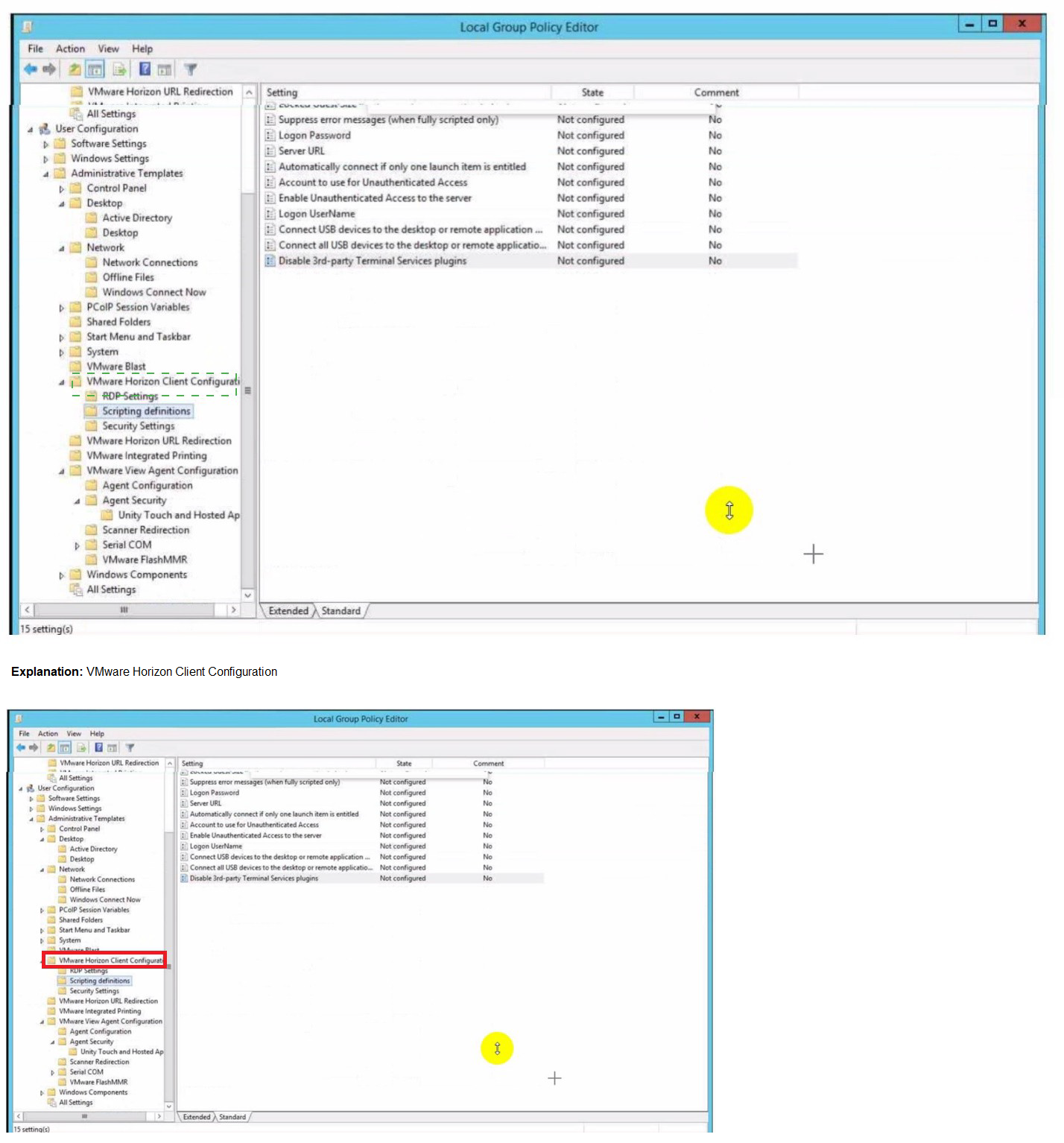
An administrator wants to set the initial login into a VDI desktop to be full screen.
In the Group Policy Management Editor Window, mark the setting that needs to be
configured by clicking on it.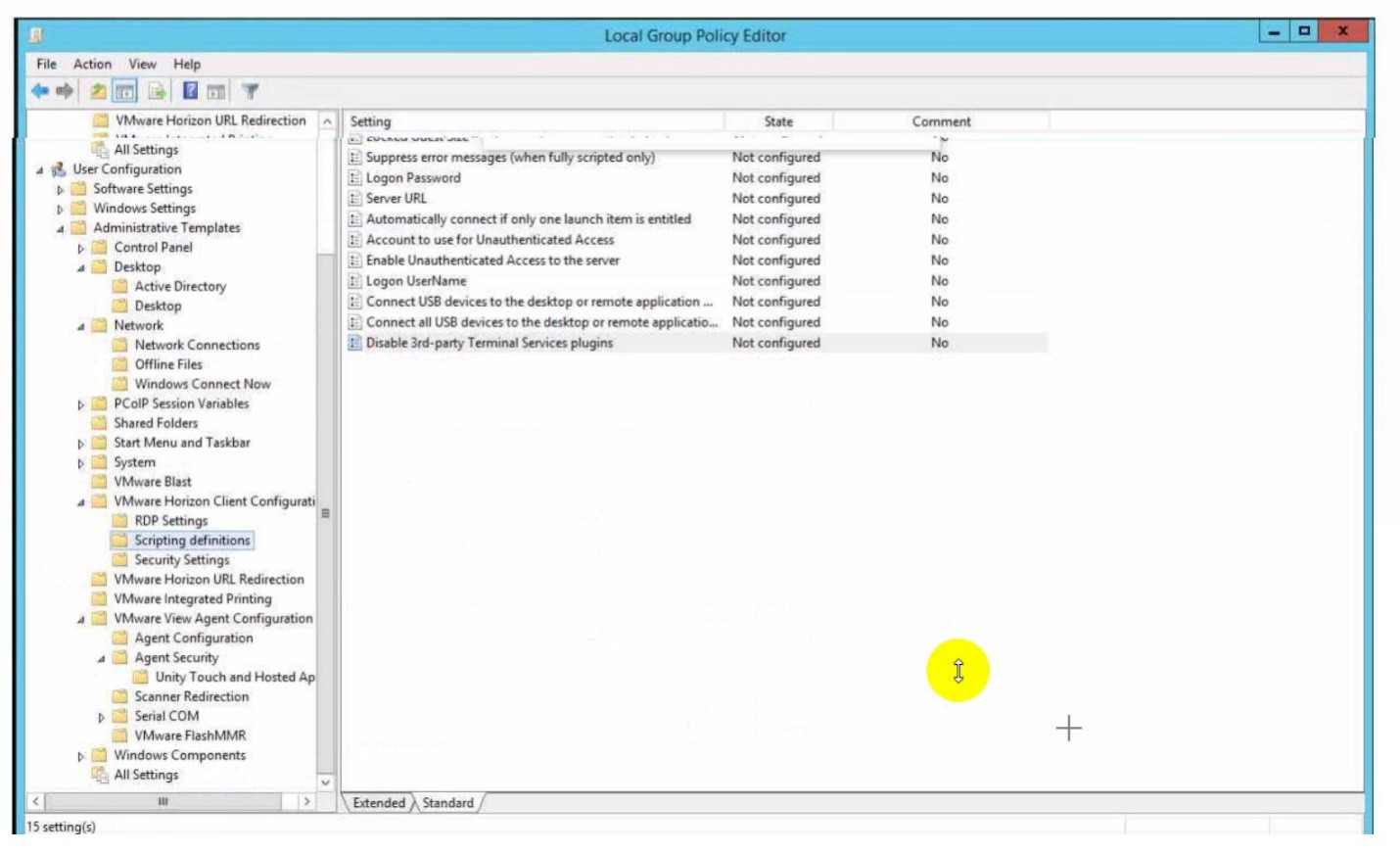
How do multiple Horizon Connection Server instances in a pod maintain synchronization?
A. Horizon Connection Server instances keep their data in an AD LDS database, which is automatically synchronized between the Connection Server.
B. Horizon Connection Server instances keep their data in an Oracle database, which works as the central hub.
C. Horizon Connection Server instances keep their data in a local MySQL DB. The data is synchronized once every 24h.
D. Horizon Connection Server instances keep their data in an MS SQL database, which works as the central hub.
Explanation:
Horizon Connection Servers use Microsoft AD LDS (Active Directory Lightweight Directory Services) — previously known as ADAM — as their embedded configuration database . This lightweight directory service stores all Horizon-specific configuration data, including desktop pools, entitlements, farm definitions, global settings, and user assignments.
❌ Why Other Options Are Incorrect
B. Horizon Connection Server instances keep their data in an Oracle database, which works as the central hub.
Horizon does not use Oracle Database for Connection Server configuration data. While other VMware products (like vCenter Server) do support Oracle, Horizon relies exclusively on AD LDS for its configuration repository.
C. Horizon Connection Server instances keep their data in a local MySQL DB. The data is synchronized once every 24h.
Horizon does not use MySQL for configuration data. More importantly, AD LDS synchronization is real-time, not on a 24-hour schedule. A daily sync would be completely unacceptable for an enterprise VDI platform where configuration changes need immediate effect.
D. Horizon Connection Server instances keep their data in an MS SQL database, which works as the central hub.
Microsoft SQL Server is used in Horizon, but only for a different purpose — the event database . The event database stores historical activity logs (user connections, administrative changes, system events), not the live configuration data. Unlike the AD LDS configuration database, the event database is a shared central database, not replicated locally.
📖 References
Official VMware Documentation: "The Horizon LDAP repository is stored in the AD LDS instance on each Connection Server"
Horizon Administration Guide: Confirms AD LDS replication for configuration data and MS SQL for events
An end-user is experiencing a black screen when connecting to their virtual desktop. After a few seconds, the connection closes. Which could be the cause of the issue? (Choose three.)
A. There is a vRAM shortage on the Horizon virtual machine.
B. The Client machine video memory is too high.
C. The incorrect video driver version is installed on the Horizon virtual machine.
D. The Horizon Virtual Machine video memory is too high.
E. There is an incorrect firewall configuration.
Explanation:
A black screen followed by an immediate disconnection after a few seconds is a classic symptom of a display protocol or rendering failure in VMware Horizon.
A (vRAM Shortage):
If the virtual machine does not have enough video RAM configured in vSphere to support the targeted resolution or number of monitors, the Blast or PCoIP protocol will fail to render the frame buffer. This results in a temporary black screen before the session times out and drops.
C (Incorrect Video Driver):
The Horizon Agent relies heavily on specific display drivers (such as the VMware Horizon Virtual Display driver or vendor-specific drivers like NVIDIA vGPU). If an incorrect, mismatched, or corrupted video driver is installed on the virtual machine, the display protocol cannot capture the desktop screen, causing the connection to fail and close.
E (Incorrect Firewall Configuration):
When a user connects, authentication happens over standard HTTPS (port 443). Once authenticated, the connection hands off to the display protocol ports (Blast on TCP/UDP 22443 or PCoIP on TCP/UDP 4172). If a firewall blocks these specific protocol ports between the client (or Unified Access Gateway) and the virtual machine, the user will see a black screen during the handoff until the session drops.
Why Other Options Are Incorrect
B is incorrect:
High video memory on a client machine does not restrict its ability to process downstream video packets from a Horizon session.
D is incorrect:
Allocating extra or "too high" video memory to the Horizon virtual machine does not cause a black screen; it simply consumes additional host RAM overhead. It is a shortage of vRAM that triggers the failure.
References
VMware Horizon Troubleshooting Guide:"Troubleshooting Horizon Client Blank or Black Screen Issues," which highlights checking firewall port configurations (22443/4172) and validating vRAM allocation matching screen topology.
An administrator needs to deploy an application to specific users in their instant-clone
desktop environment with the following characteristics:
• The application needs to be updated very frequently.
• The application needs to be installed as soon as possible.
• The application is not multi-user aware.
Which solution would meet the requirements?
A. VMware Horizon Published Application
B. VMware Dynamic Environment Manager
C. VMware ThinApp
D. VMware App Volumes
✅ Explanation
VMware App Volumes meets all three requirements. It delivers applications as virtual disks (AppStacks) attached in real-time during login, satisfying "installed as soon as possible" . For frequent updates, administrators simply replace the AppStack—no golden image rebuild required . For "not multi-user aware" , App Volumes attaches apps at the machine level to single-user instant clones, avoiding multi-user conflicts .
❌ Why Other Options Are Incorrect
A. VMware Horizon Published Application — Relies on RDSH, which is inherently multi-user. The application is not multi-user aware, making this incompatible .
B. VMware Dynamic Environment Manager — Manages user settings (registry, folders) but does not install or deliver application binaries. It cannot deploy the application itself .
C. VMware ThinApp — Creates isolated application packages. While it solves multi-user issues, updates require repackaging and users launch from network shares—slower than App Volumes' real-time mount . App Volumes is the modern, recommended solution for instant clones .
📖 References
VMware JMP Architecture: Instant Clones + App Volumes + DEM for real-time app delivery
App Volumes Documentation: Just-in-time attachment for single-user desktops, update via AppStack replacement
ThinApp Use Cases: Application isolation, but not optimized for frequent updates or instant delivery to instant clones
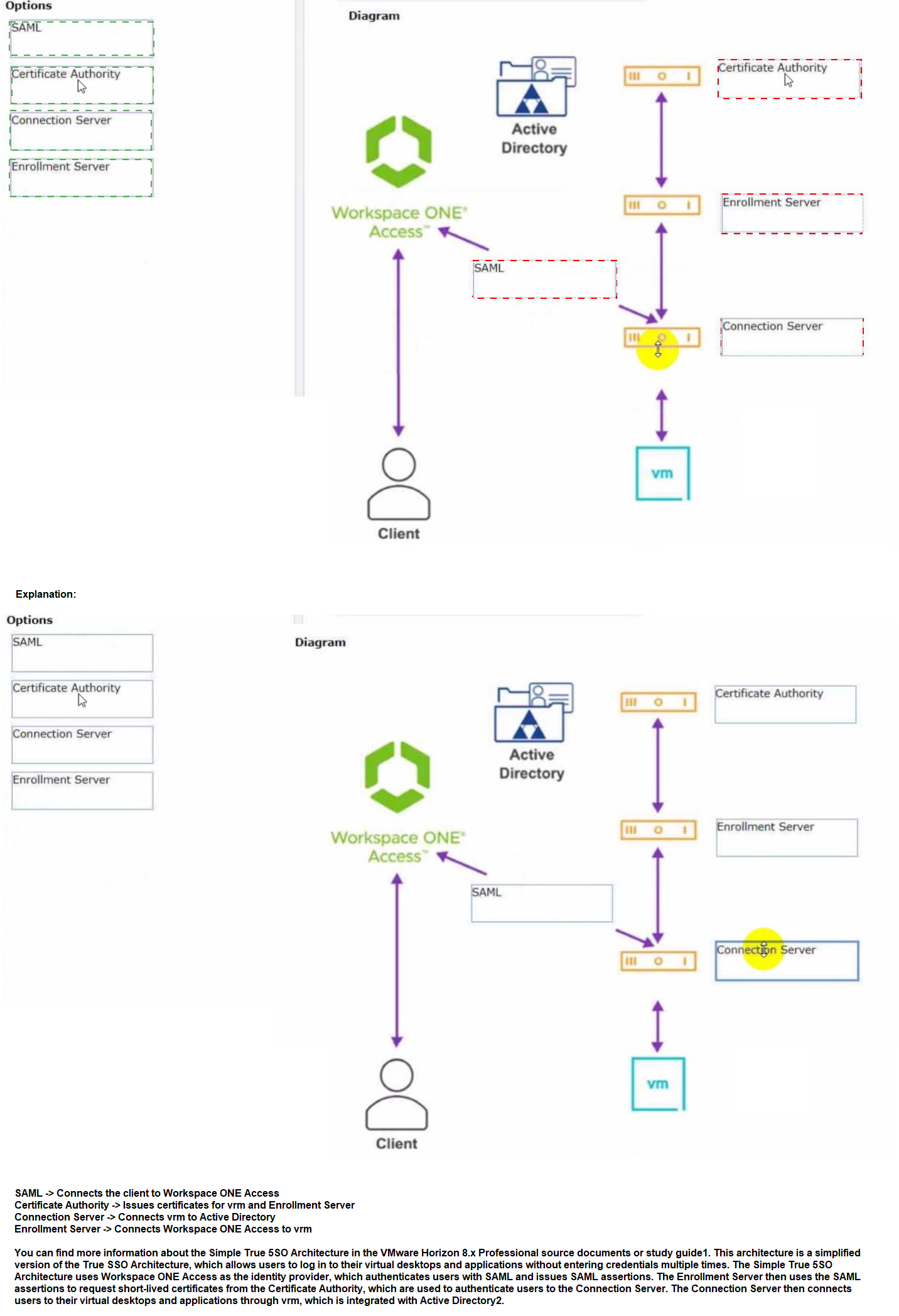
Refer to the exhibit.
Drag and drop the correct options to build a Simple True 5SO Architecture on the left into
the diagram on the right.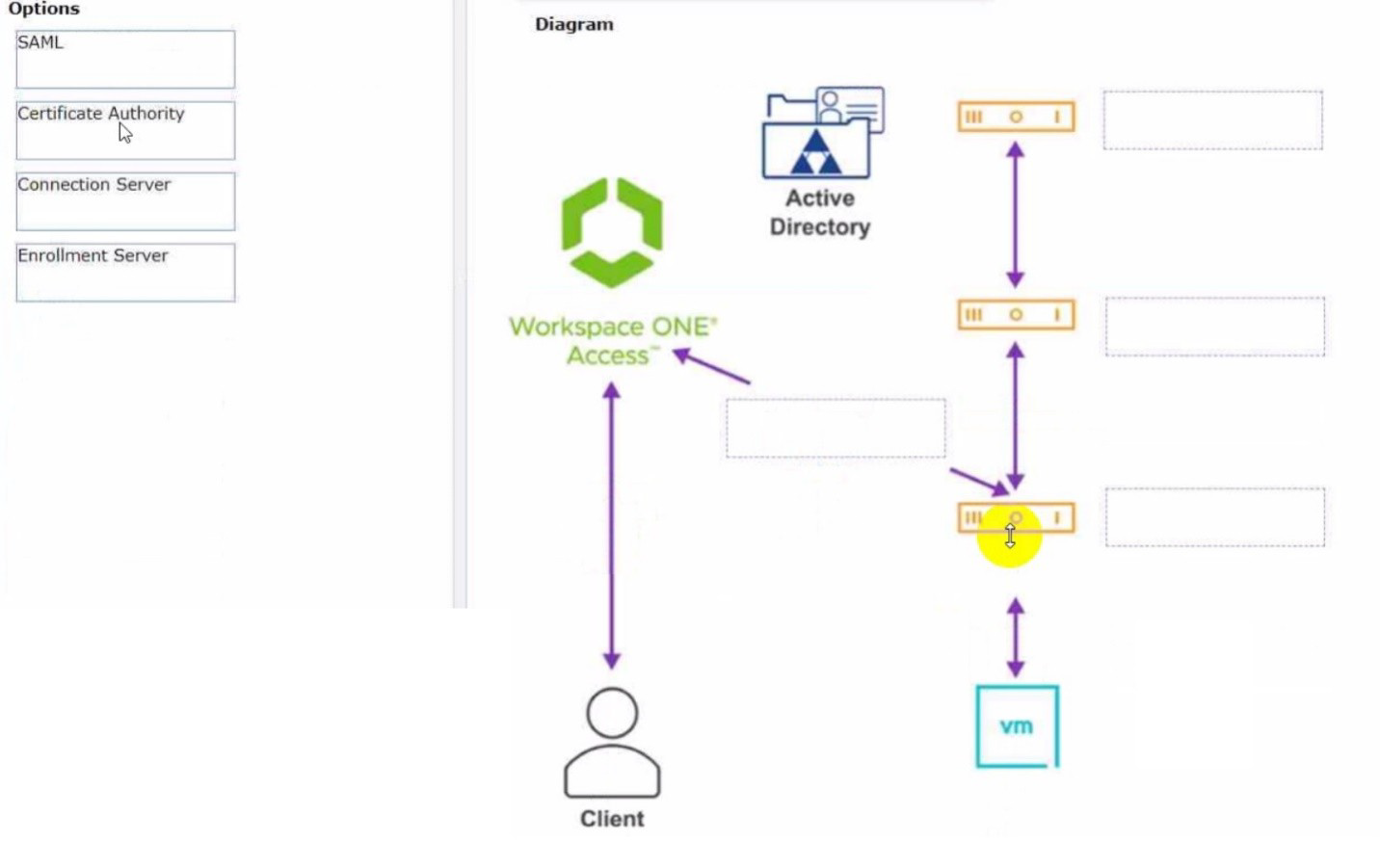
Refer to the exhibit.
An administrator prepared a golden image based on a Windows Server Operating System.
They plan to use this image to create a single-session virtual desktop pool. The installation
is completed, the virtual machine is turned off, and the snapshot has been created. When
the administrator creates the desktop pool, they are unable to select the created image and
snapshot. They do see other previously created golden images, based on Desktop
Operating Systems.
The administrator has opened the Horizon Console.
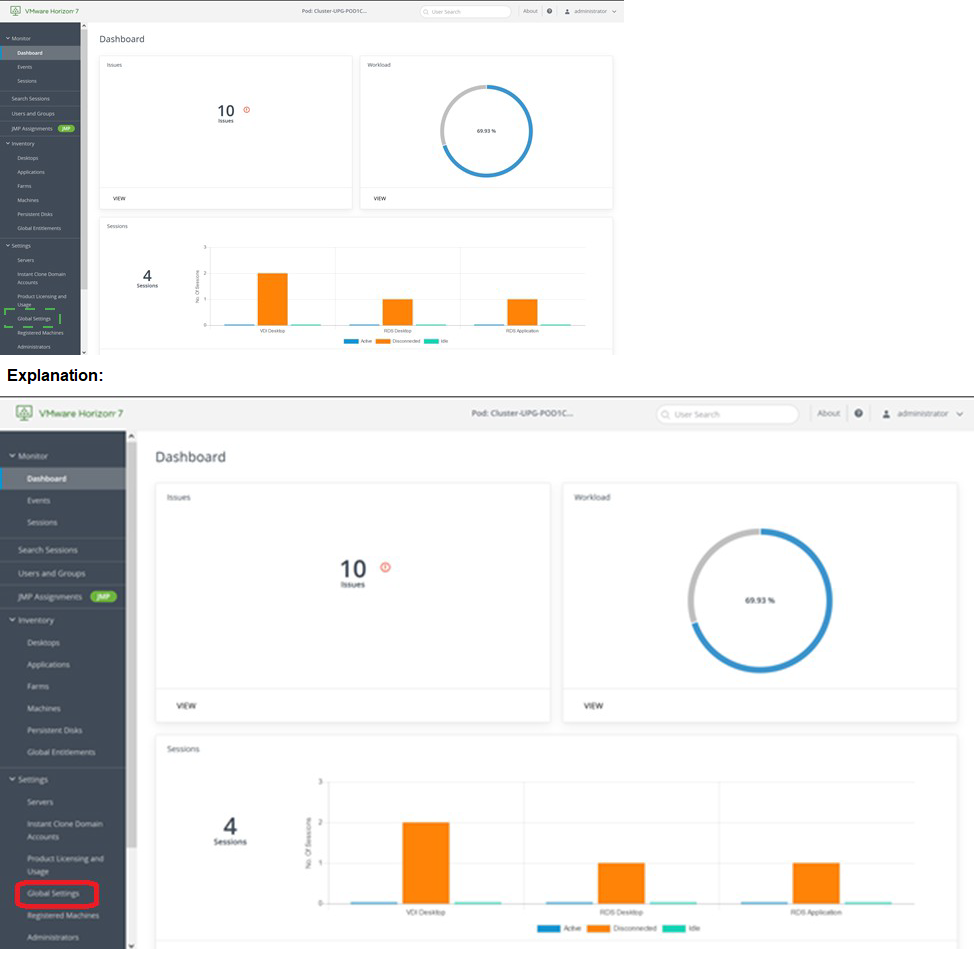
Mark the correct menu option where the administrator can enable Windows Server
Operating Systems to be used as single-session desktops by clicking on it.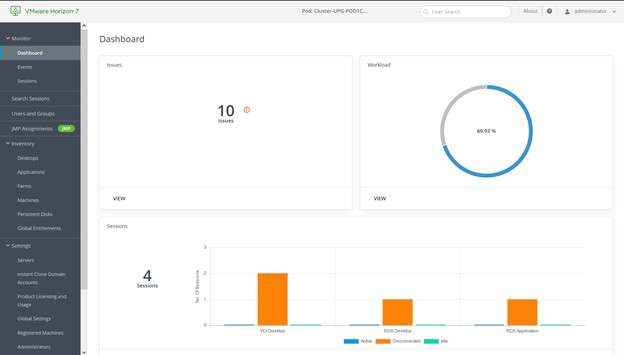
| Page 2 out of 11 Pages |
| 1234 |
| 2V0-51.23 Practice Test Home |