
Last Updated On : 12-Oct-2026
The administrator of Windows 10 desktops in a VMware Horizon environment needs to
build a new Windows 10 desktop pool. This new pool will be dedicated to training and
onboarding new employees. The administrator has created a shortcut on a test machine,
which has successfully opened the web browser to the on-boarding applications. After
deploying the new desktop pool across the company, the administrator notices that the
shortcut placed on desktops is not available to any other user connecting to the desktop
pool.
Which two options are available for the administrator to make this shortcut available to all
desktop pool users, while minimizing ongoing administrative effort, before updating the
desktop pool golden image? (Choose two.)
A. Copy the shortcut during user provisioning to a non-writeable App Volume.
B. Copy the shortcut to the Windows Default Domain Controller Policy.
C. Copy the shortcut to c:\users\Public\Desktop.
D. Configure a Shortcut with Horizon View Client.
E. Configure a Shortcut with DEM (Dynamic Environment Manager).
✅ Explanation:
The administrator's problem is simple: the shortcut was placed only in the test user's personal desktop folder. When other users log into the desktop pool, they don't see it because Windows combines two locations for each user's desktop view:
C:\Users\Public\Desktop → Items here appear on every user's desktop
C:\Users[username]\Desktop → Items here appear only for that specific user
C. Copy the shortcut to c:\users\Public\Desktop
This is the simplest native Windows solution. The Public Desktop folder is specifically designed to make shortcuts visible to all users who log onto the same machine. No additional VMware components are required. However, this only applies to desktops already deployed; new or refreshed desktops would need the shortcut included in the golden image.
E. Configure a Shortcut with DEM (Dynamic Environment Manager)
DEM provides a more flexible, enterprise-grade solution. You can create a shortcut configuration in the DEM console that applies to specific users or groups during logon. DEM can be configured to refresh shortcuts at each login, ensuring consistency even when new desktops are added or existing ones are refreshed. It also supports item-level targeting, allowing the shortcut to appear only for training/onboarding users.
❌ Why Other Options Are Incorrect
A. Copy the shortcut during user provisioning to a non-writeable App Volume
— App Volumes delivers entire application virtual disks, not individual shortcuts. Shortcuts placed on an App Volume would not automatically appear on users' desktops.
B. Copy the shortcut to the Windows Default Domain Controller Policy
— This GPO applies only to Domain Controllers, not to desktop machines. It would have no effect on the Horizon desktop pool.
D. Configure a Shortcut with Horizon View Client
— This creates shortcuts on the client device's local desktop, not within the virtual desktop session. This affects only that specific end-user's physical machine, not all users of the desktop pool.
📖 References
VMware DEM Documentation: Shortcut configuration via DEM console with item-level targeting
Windows OS: Public Desktop folder (C:\Users\Public\Desktop) displays shortcuts to all users
Refer to the exhibit.
Drag and drop the labels on the left into their correct location in the diagram of VMware
Horizon Architecture on the right.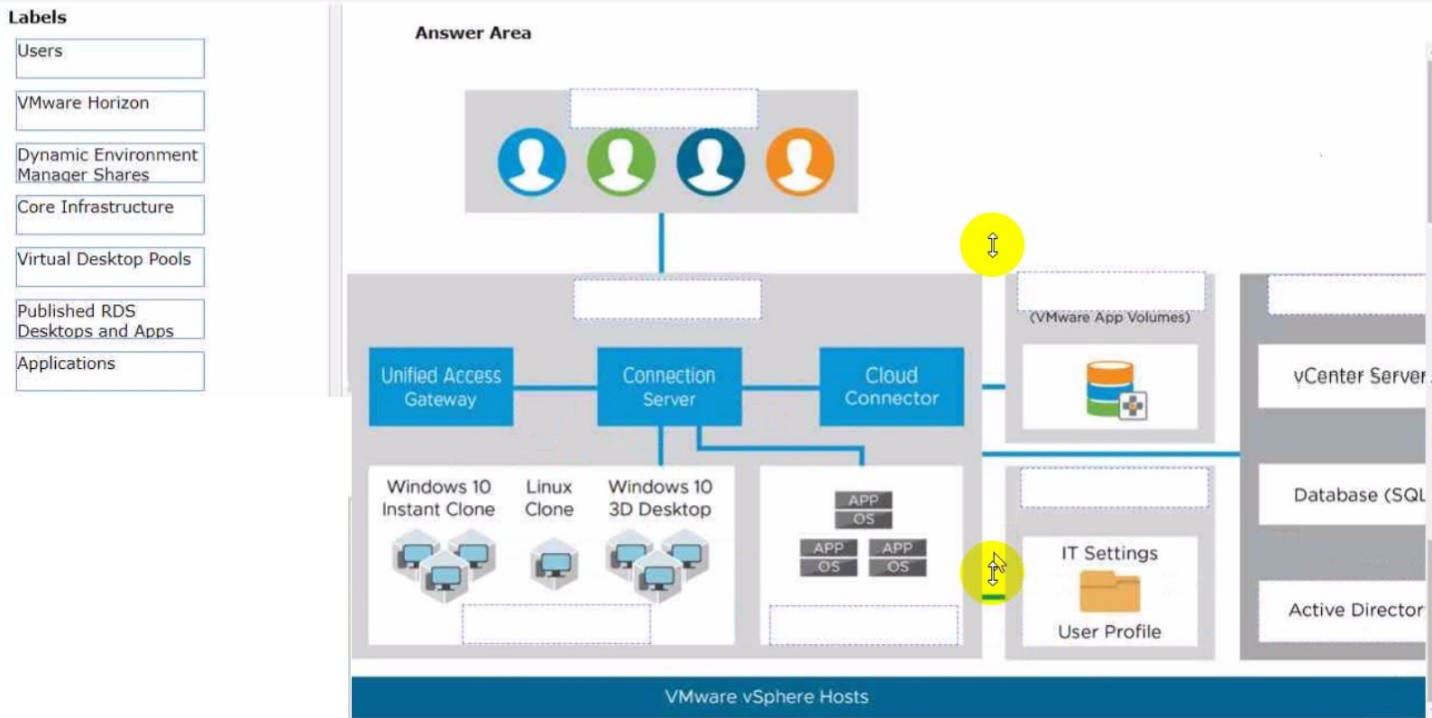
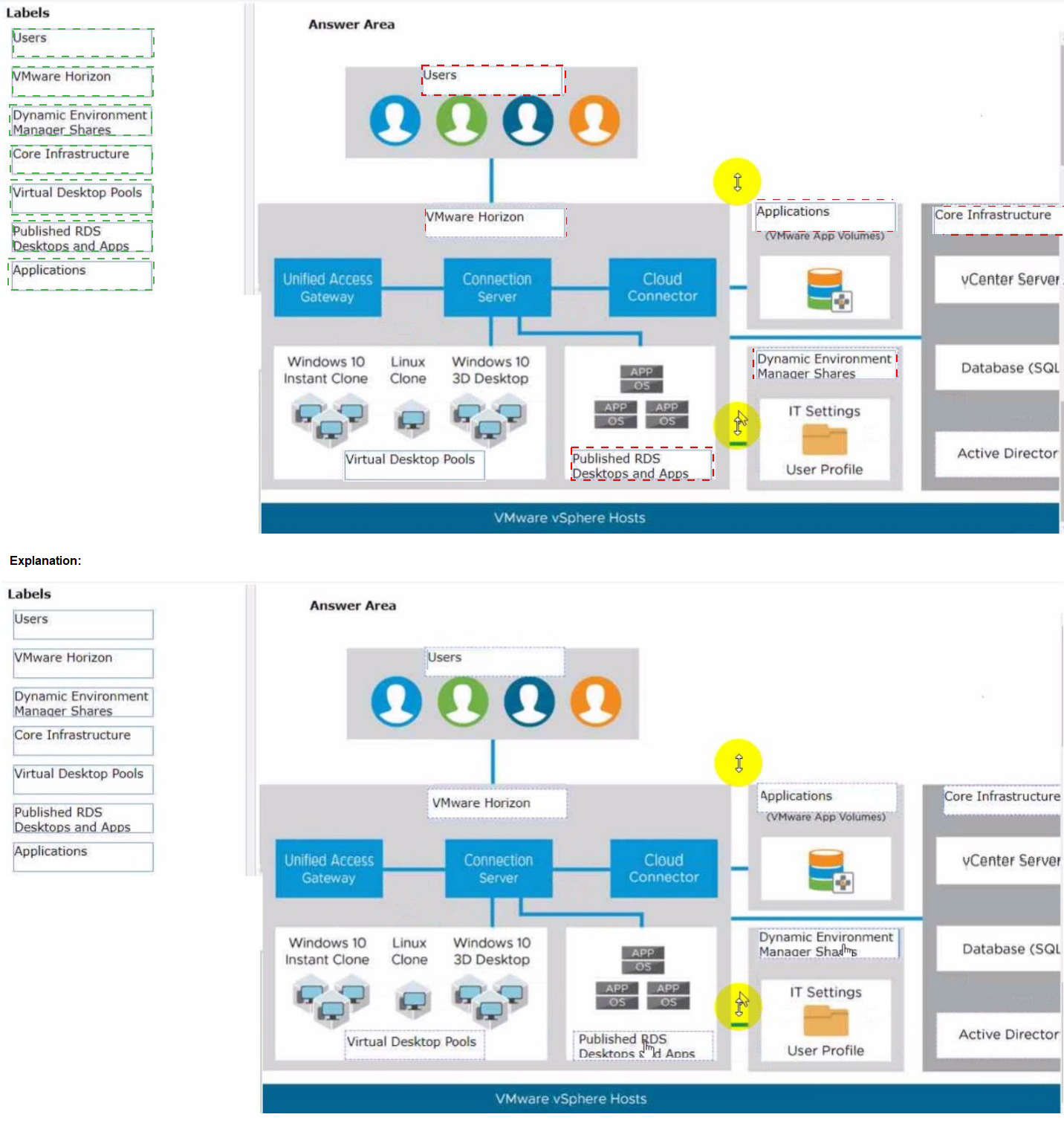
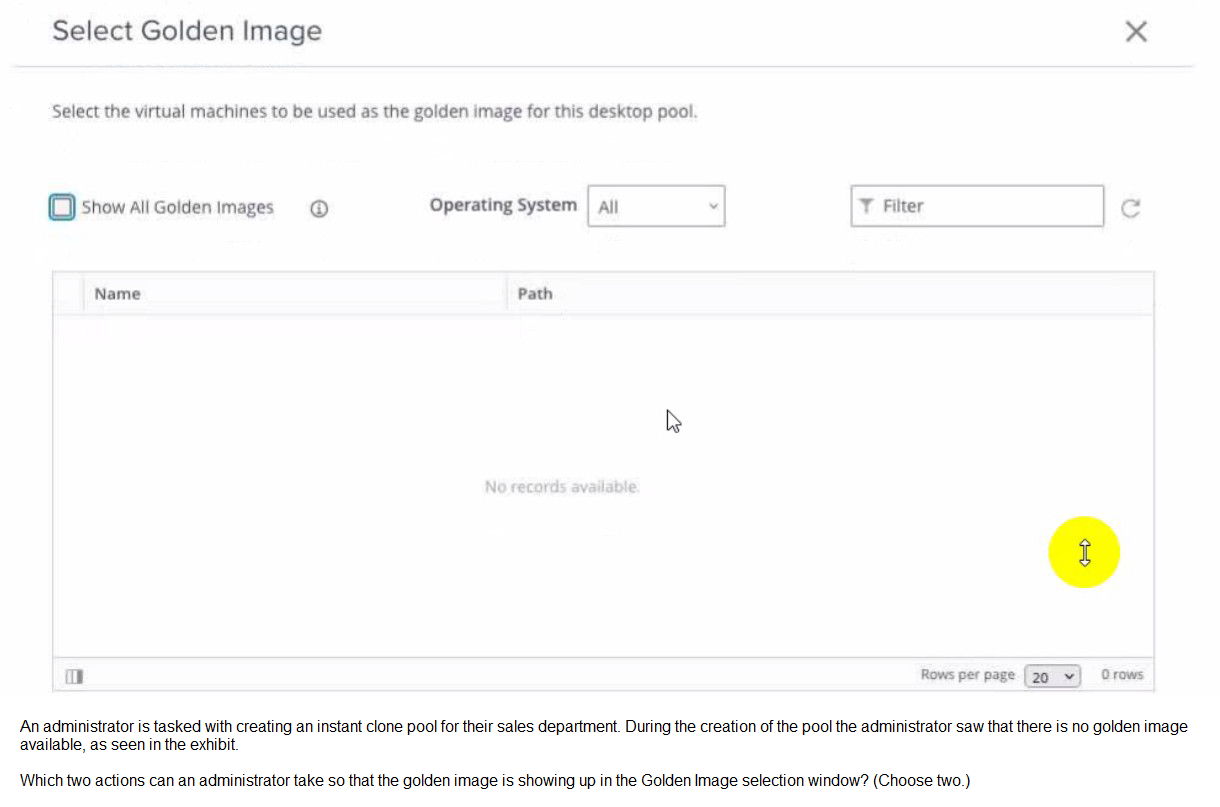
Refer to the exhibit.
A. Login to the vSphere Client, select the Golden Image virtual machine and delete all snapshots.
B. Login to the vSphere Client, select the Golden Image virtual machine and create a snapshot
C. Refresh the Select Golden Image view and select the Golden Image.
D. Login to the vSphere Client, select the Golden Image virtual machine and clone it to a new virtual machine.
E. Login to the vSphere Client, select the Golden Image virtual machine and convert it to a template.
Explanation:
The "No records available" message indicates Horizon Console cannot find a valid golden image. Two specific actions are required to make a golden image available for instant clone pools:
B. Login to the vSphere Client, select the Golden Image virtual machine and create a snapshot.
This is mandatory. Horizon requires a snapshot of the golden image VM before it will appear in the selection list. The snapshot must be taken when the VM is powered off—a powered-on snapshot will be rejected as incompatible . Horizon uses the snapshot as the baseline from which all instant clones are forked using vmFork technology .
C. Refresh the Select Golden Image view and select the Golden Image.
After creating the snapshot in vSphere, Horizon Console needs to refresh its inventory view. The wizard does not automatically detect new snapshots in real-time. Clicking Refresh forces Horizon to query vCenter again, after which the newly created snapshot should appear in the dropdown list.
❌ Why Other Options Are Incorrect
A. Login to the vSphere Client, select the Golden Image virtual machine and delete all snapshots.
This would make the problem worse. Snapshots are mandatory for instant clone pools. Deleting them removes the required artifact entirely .
D. Login to the vSphere Client, select the Golden Image virtual machine and clone it to a new virtual machine.
Cloning creates a new independent VM but does not create a snapshot on the original. Horizon requires a snapshot, not a separate cloned VM .
E. Login to the vSphere Client, select the Golden Image virtual machine and convert it to a template.
Horizon instant clone pools cannot use VM templates. The official documentation explicitly states: "It is not possible to create an instant clone desktop pool from a VM template. You must first convert the VM template to a VM" .
📖 References
VMware Documentation: "Before creating an instant-clone desktop pool, you must take a snapshot of the golden image. You must power off the golden image in vCenter Server before taking the snapshot"
VMware Documentation:"It is not possible to create an instant clone desktop pool from a VM template"
A user is complaining that each time they logon they need to change the settings for the email client. Which three options can an administrator deploy to make sure the user's settings are being saved? (Choose three.)
A. VMware App Volumes Writeable Volumes
B. Roaming Profiles
C. Persona Management
D. VMware Dynamic Environment Manager
E. Flexible profiles
Explanation:
When a user's application settings vanish between logons in a Horizon environment, it means they are utilizing non-persistent virtual desktops. In a non-persistent pool, the virtual machine discards its state and reverts to the golden image snapshot at logoff. To ensure settings (like email client configurations, signatures, and account profiles) persist, administrators must deploy a profile management solution.
A (VMware App Volumes Writable Volumes):
A Writable Volume is a personalized user-specific VMDK/VHD attached to the VM during login. It captures everything the user alters, including files, user profile data, and registry entries. This ensures application settings remain intact across sessions.
B (Roaming Profiles):
This is a native Microsoft Windows Active Directory feature. It copies the user's local profile (C:\Users\Username) to a central network share during logoff and downloads it back to whichever virtual desktop the user logs into next.
D (VMware Dynamic Environment Manager):
DEM (formerly UEM) is the modern, standard solution for Horizon. It targetedly captures specific user profile settings and registry hives (such as an email client's configuration) at application exit or logoff, and restores them at next login, ensuring a fast and persistent user experience.
Why Other Options Are Incorrect
C is incorrect:
VMware Persona Management was an older profile synchronization tool bundled with Horizon. However, it has been deprecated and completely removed from modern versions of VMware Horizon 8.x, making it an invalid deployment option.
E is incorrect:
"Flexible profiles" is a generic industry descriptor or a feature belonging to third-party profile vendors, not a native or supported deployment component within the VMware Horizon product suite.
References
VMware Horizon 8 Administration Guide:"Managing User Profiles" and "Configuring Dynamic Environment Manager," explaining how to persist user application settings across non-persistent desktop sessions.
What are two best practices for Windows Golden Image Optimization? (Choose two.)
A. Activate Windows OS paging.
B. Turn on automatic Windows maintenance (scheduled tasks).
C. Turn on automatic Windows Updates.
D. Disable unnecessary services.
E. Disable power options.
Explanation:
When optimizing a Windows Golden Image for VDI deployment (such as Instant Clones), the goal is to maximize host resource utilization (CPU, memory, and I/O) and ensure predictable VM behavior.
D (Disable unnecessary services):
Disabling background services that are redundant in a virtual environment (such as Windows Search indexing, SysMain/SuperFetch, and Windows Error Reporting) significantly reduces idle CPU cycles and unnecessary disk I/O operations. This increases user density per host.
E (Disable power options):
In a VDI environment, virtual machines should always remain at high performance. Disabling power-saving features—such as putting the display to sleep, hard disk hibernation, or letting the OS enter a low-power sleep state—prevents VMs from becoming unresponsive to the connection broker and eliminates unnecessary storage I/O overhead from hibernation files (hiberfil.sys).
Why Other Options Are Incorrect
A is incorrect:
You should configure and optimize the Windows paging file (ideally setting it to a fixed size or offloading it), but you do not need to "activate" it as a best practice, as it is already enabled by default.
B and C are incorrect:
Leaving automatic Windows Updates and scheduled maintenance tasks enabled is a major anti-pattern in VDI. If dozens or hundreds of cloned VMs attempt to run disk defragmentation, system maintenance, or download updates simultaneously, it triggers an "I/O storm" that can degrade storage performance for the entire cluster. These actions should only be performed centrally on the Golden Image before sealing it.
References
VMware Horizon 8 Windows OS Optimization Tool (OSOT) Guide: Detail instructions on standard optimization templates, which heavily automate the disabling of power-saving states, scheduled maintenance tasks, and non-essential Windows services.
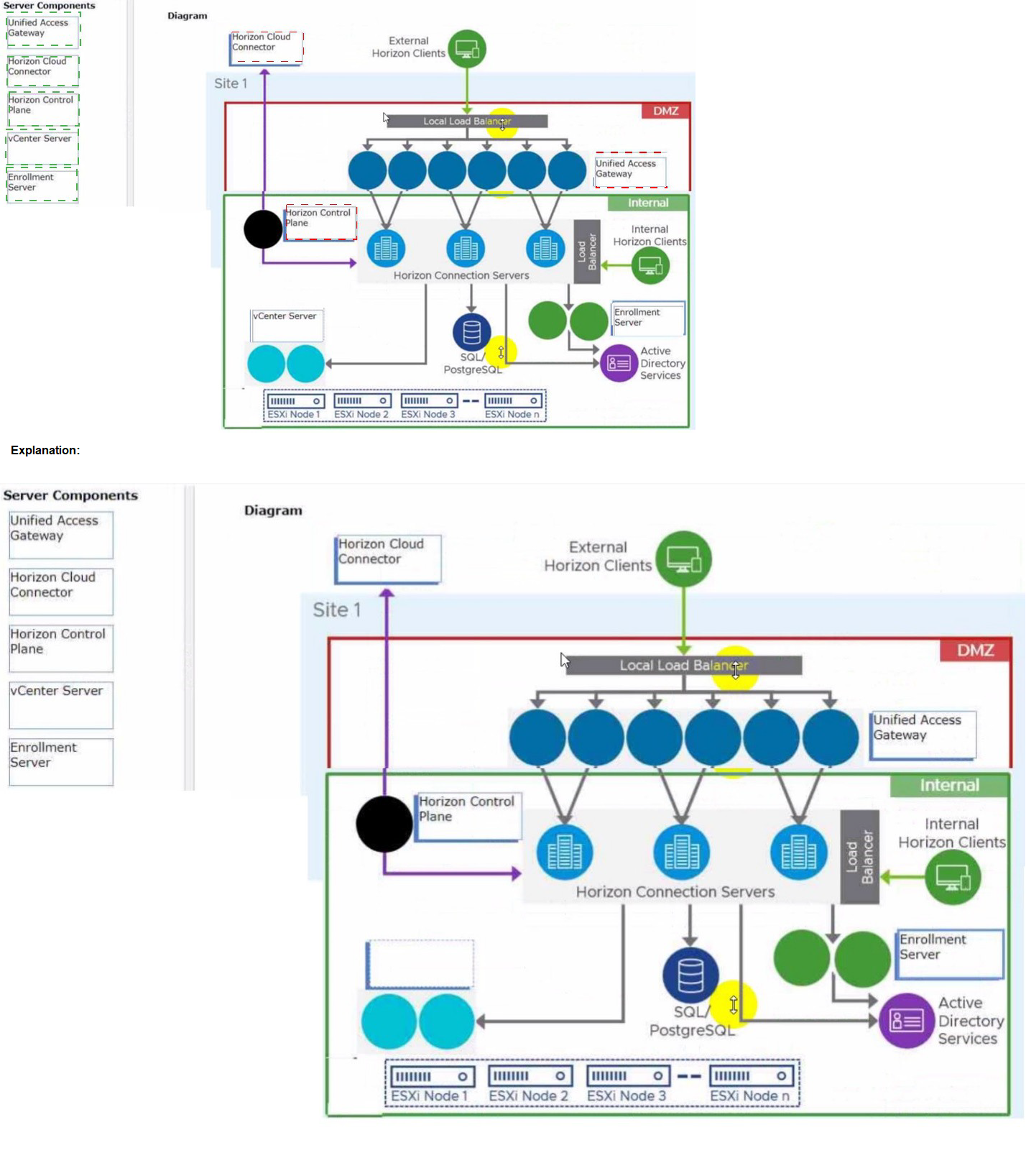
Refer to the exhibit.
Drag and drop the components on the left that are part of the logical architecture for a
single-site deployment of VMware Horizon into their correct position in the diagram on the
right.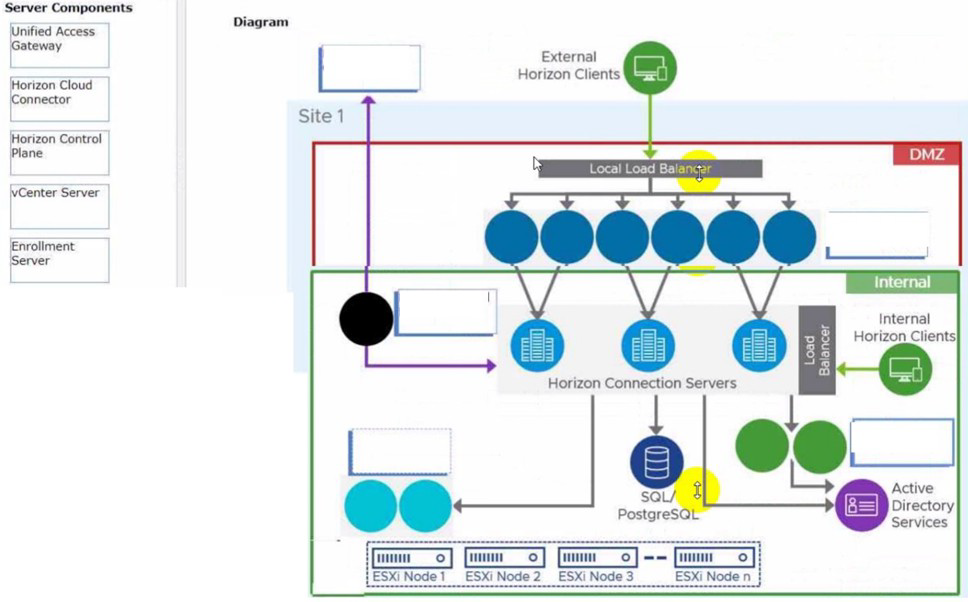
An IT support center has been tasked with helping with Horizon desktop user issues. What is the minimal level of Horizon Console access they would need to perform this action?
A. Help Desk Administrators
B. Local Administrators
C. Global Help Desk Administrators
D. Inventory Administrators
E. Administrators
Explanation:
VMware Horizon features Role-Based Access Control (RBAC) to delegate specific permissions to different administrative groups while maintaining the principle of least privilege.
Why A is correct:
The Help Desk Administrators role is specifically designed for front-line IT support and help desk personnel. It grants the minimal required permissions to use the Horizon Help Desk Tool within the Horizon Console. With this role, support staff can search for users, view active sessions, check session performance metrics (such as latency and bandwidth), and perform basic troubleshooting tasks (such as resetting, restarting, or disconnecting a user's desktop session) without having any rights to modify global system configurations, pools, or vCenter settings.
Why Other Options Are Incorrect
B is incorrect:
"Local Administrators" is an operating system-level group within Windows, not a predefined administrative role within the Horizon Console RBAC framework.
C is incorrect:
The Global Help Desk Administrators role applies to multi-pod federated environments (Cloud Pod Architecture). For a standard support center troubleshooting standard Horizon desktop user issues, the local "Help Desk Administrators" role provides the necessary minimal access.
D is incorrect:
The Inventory Administrators role allows users to manage desktop pools, farms, and machines, which exceeds the minimal requirements needed just to assist users with active session issues.
E is incorrect:
The Administrators role provides full, unrestricted cryptographic and structural privileges across the entire Horizon infrastructure, violating the principle of least privilege for a support center.
References
VMware Horizon 8 Administration Guide: "Configuring Role-Based Access Control" and "Predefined Roles," which explicitly list the permissions associated with the Help Desk Administrators role.
Which three steps are required to entitle user and groups to pools? (Choose three.)
A. Run the Active Directory entitlement script in the golden master, when preparing if for the pool.
B. During pool creation in the entitlement pane, click on add, search for users and groups in the Active Directory, continue and finish the pool creation.
C. During the Pool creation the desired Active Directory OU for the VMs will be specified. This will automatically add the preconfigured associated user group to the Horizon entitlements.
D. Navigate to Inventory > Desktops > check mark a pool > click on Add Entitlement.
E. Navigate to Users and Groups > Entitlements > click on Entitlements > click on Add Entitlements, search for users and groups in the Users pane and add the desired desktop pool in the next pane Desktop Pools.
✅Explanation
Entitlement is the process of granting Active Directory users or groups permission to access a specific desktop pool. Three valid methods exist in Horizon Console:
B. During pool creation in the entitlement pane, click on add, search for users and groups in the Active Directory, continue and finish the pool creation.
The Add Pool wizard includes an Entitlements page where you can immediately entitle users. Selecting the checkbox to entitle users after adding the pool performs this action .
D. Navigate to Inventory > Desktops > check mark a pool > click on Add Entitlement. This is the standard post-creation method.
After a pool exists, select it under Inventory > Desktops and use the Add Entitlement button to grant access .
E. Navigate to Users and Groups > Entitlements > click on Entitlements > click on Add Entitlements, search for users and groups in the Users pane and add the desired desktop pool in the next pane Desktop Pools.
This alternative path starts from Users and Groups, allowing administrators to see what resources a specific user already has before adding more entitlements .
❌ Why Other Options Are Incorrect
A. Run the Active Directory entitlement script in the golden master when preparing it for the pool.
This is not a valid step. The golden image is a template VM used for cloning and does not interact with entitlements. Entitlements are managed entirely on the Connection Server, not within the guest OS .
C. During pool creation the desired Active Directory OU for the VMs will be specified.
This will automatically add the preconfigured associated user group to Horizon entitlements. Specifying an Organizational Unit (OU) tells Horizon where to place computer objects in Active Directory. It does not automatically entitle users. User entitlement is a separate manual step or wizard selection .
📖 References
VMware Documentation: "You can entitle users and groups to a desktop pool when you create the pool or after it is created"
VMware Helpdesk: Post-creation entitlement via Inventory > Desktops > Add Entitlement
| Page 4 out of 11 Pages |
| 2345 |
| 2V0-51.23 Practice Test Home |